

WeezIQ connects directly to your WooCommerce store through an official WordPress plugin. Once installed, a single click authorizes your store, syncs all your products, coupons, and pages into your chatbot’s knowledge base, and automatically embeds the chat widget on your storefront.Documentation Index
Fetch the complete documentation index at: https://docs.weeziq.com/docs/llms.txt
Use this file to discover all available pages before exploring further.
Prerequisites
WeezIQ Account
An active WeezIQ account with at least one domain created.
WooCommerce Store
A WordPress site with WooCommerce installed and active (WooCommerce 7.0+ required).
WordPress Admin Access
You need admin or shop manager access to install plugins and manage settings.
Compatible Plan
WooCommerce integration is available on the Starter, Growth, and Pro plans. The number of products synced depends on your plan.
Setup Guide
Install the WeezIQ AI Chatbot Plugin
You can download the plugin file and upload it via Plugins → Upload Plugin.Once activated, you will see a new WeezIQ AI menu item under WooCommerce in your WordPress admin sidebar.
You will also see an admin notice at the top of your screen reminding you to complete setup. You can click Go to Settings → directly from there.
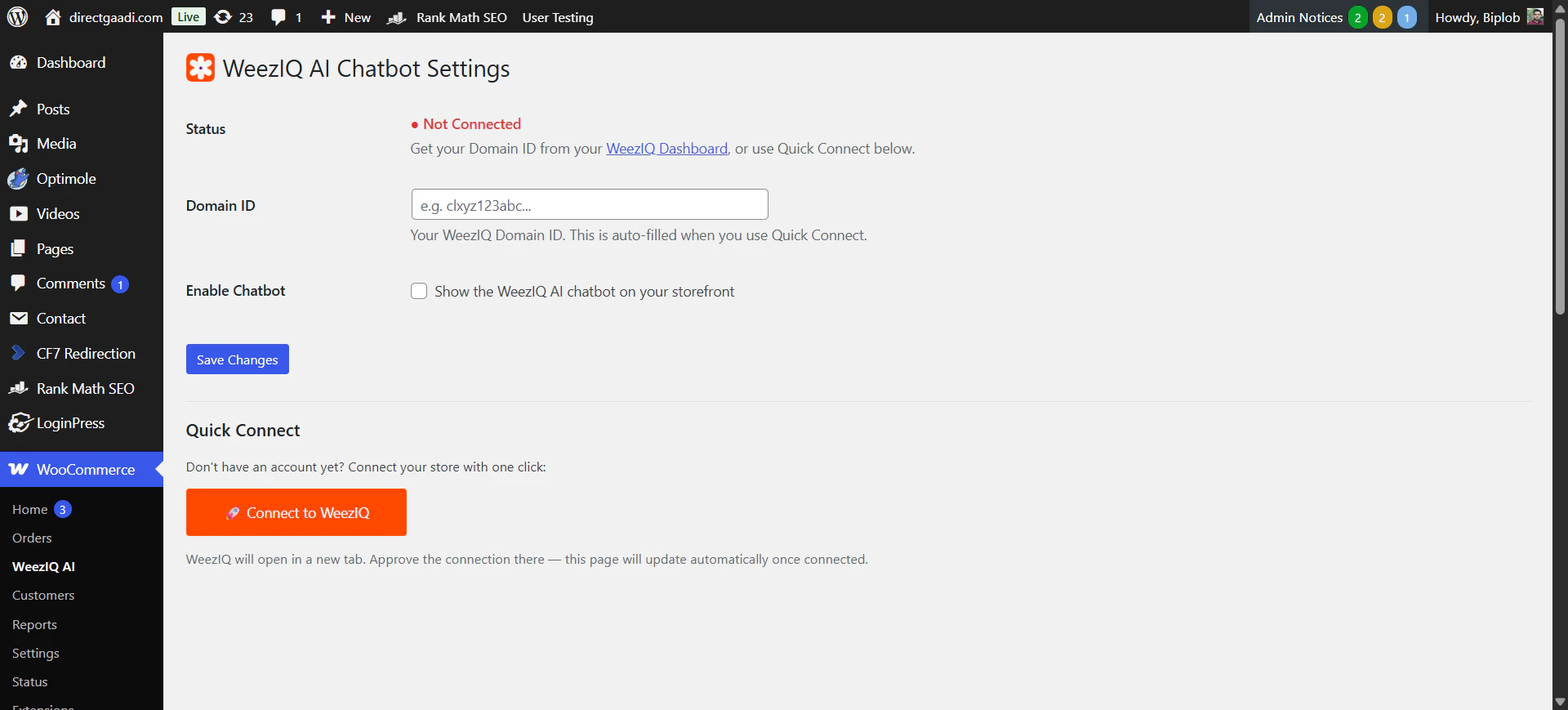
Click Quick Connect
Authorize Your Store on WeezIQ
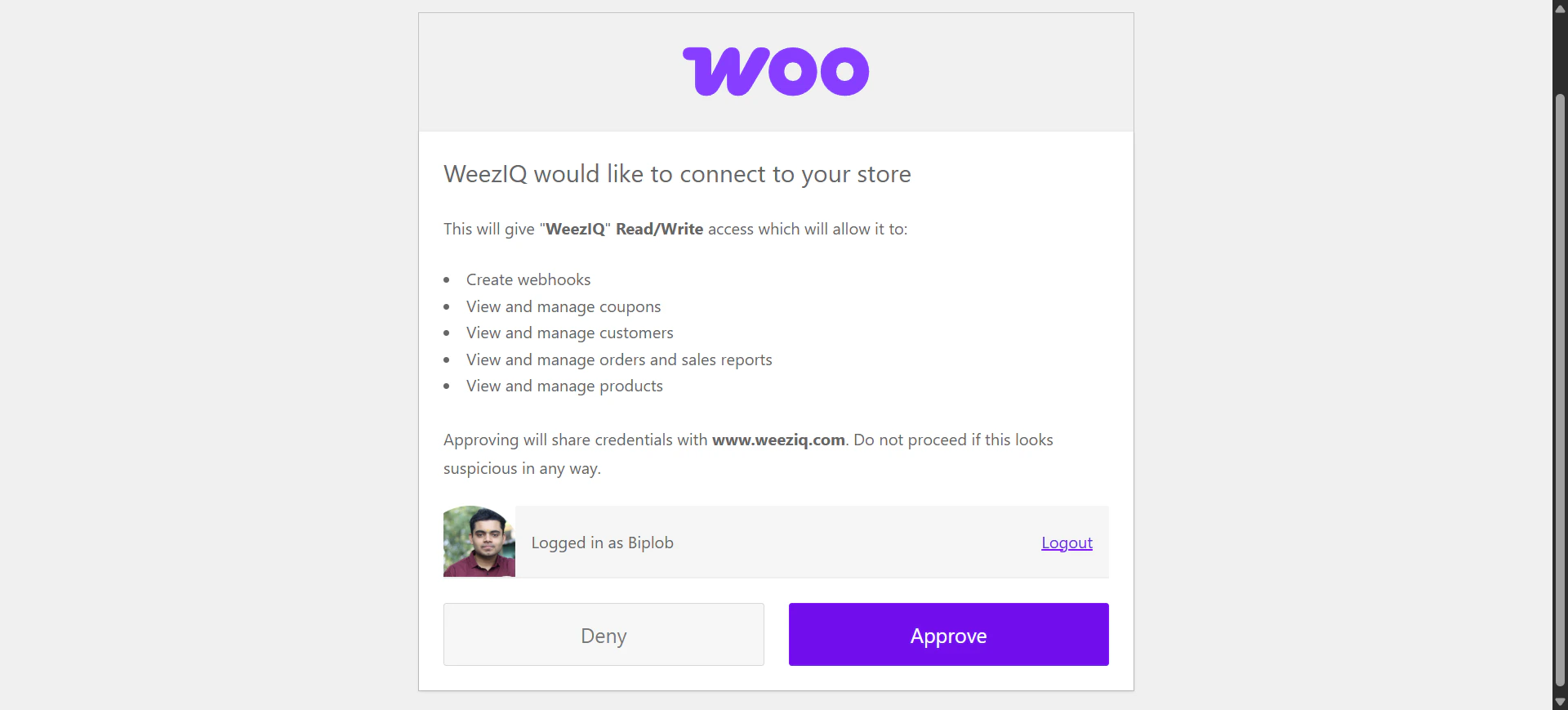
- Log in to your WeezIQ account (or create one if you don’t have one yet).
- Select which WeezIQ domain you want to link to this WooCommerce store.
- Approve the connection.
Connection Confirmed, Everything is Automatic
While you were on the WeezIQ tab, the plugin in your WordPress admin was polling WeezIQ every 3 seconds for connection status.The moment your authorization is approved: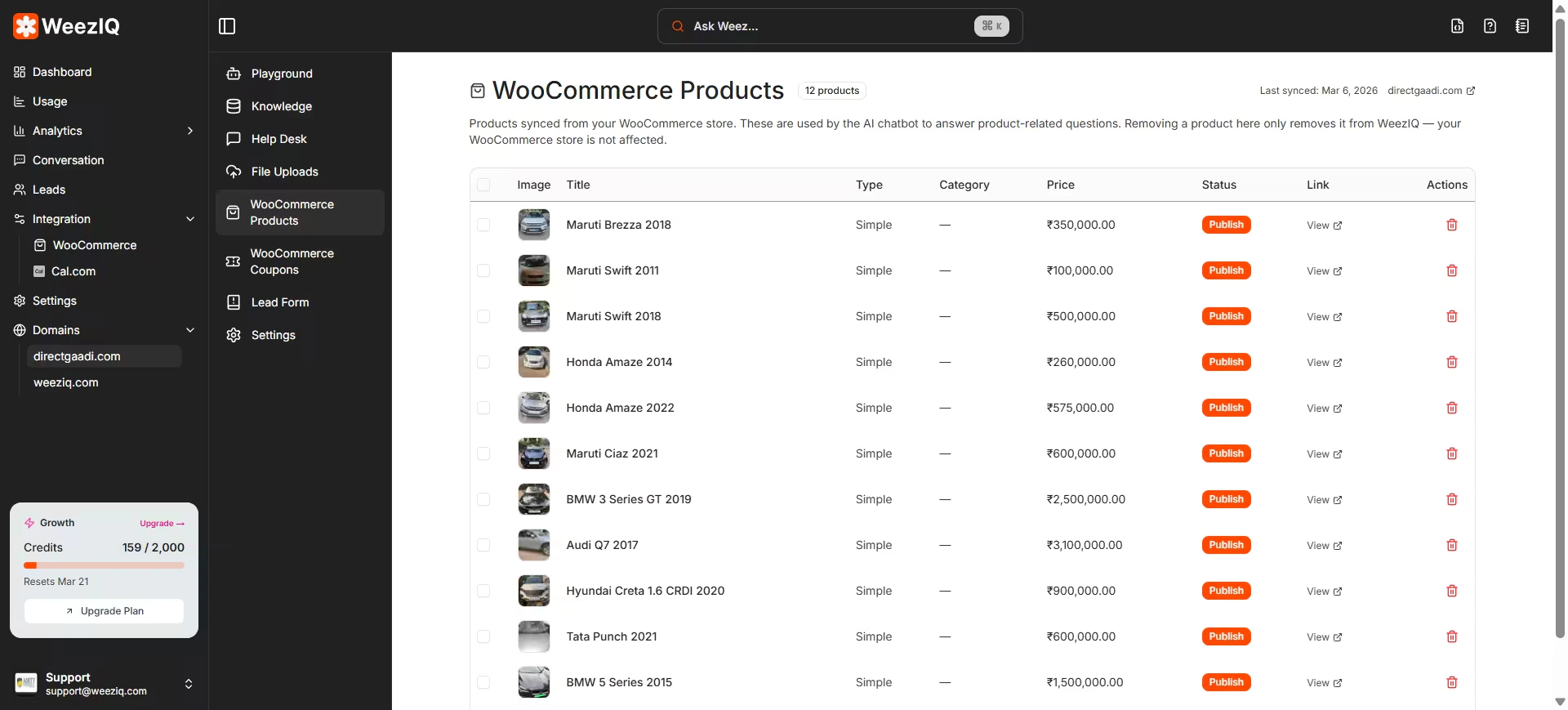
- The plugin receives confirmation and saves your WeezIQ Domain ID automatically.
- The chatbot is enabled on your storefront immediately — no extra toggle required.
- The WordPress settings page refreshes and the Status changes to Connected (shown with a green dot ●).
Products
Titles, descriptions, prices, variants, images, categories, and tags.
Coupons
Discount types, amounts, restrictions, expiry dates, and usage limits.
Pages
Your WordPress pages and posts — policies, FAQ, About Us, and more.
The number of products imported depends on your current WeezIQ plan. Your plan’s limit is shown on the WooCommerce Dashboard inside WeezIQ.
Your Chatbot is Live
That’s it. The WeezIQ chat widget is now live on your WooCommerce storefront. Every visitor to your store will see the chat bubble powered by your real product data, store pages, and AI knowledge base.The widget is injected automatically into every page of your store using a small script. No theme changes or code edits are needed.
What the Chatbot Can Do on Your Store
Once connected, your chatbot is a fully capable WooCommerce assistant:Product Recommendations
Product Recommendations
Visitors can ask “Do you have winter jackets under $100?” and the chatbot searches your synced product catalog using AI, displaying matching results as interactive Product Cards with images, prices, and direct links to the product page.
Order Lookup
Order Lookup
Customers can ask “Where is my order?” and provide their order number or email. The chatbot retrieves real-time order status, payment status, line items, and tracking information directly from your WooCommerce store.
Coupon Distribution
Coupon Distribution
You can enable specific coupons for chatbot distribution from your WeezIQ dashboard. When enabled, the chatbot can offer discount codes during conversations. Expired or fully-redeemed coupons are blocked automatically.
Cart Experience
Cart Experience
The chat widget includes a built-in Cart Overlay — a mini browsing experience where customers can explore recommended products without leaving the conversation.
Store Policy Answers
Store Policy Answers
Because your WordPress pages (returns policy, shipping info, FAQ) are synced into the Knowledge Base, the chatbot can answer detailed policy questions accurately without routing users to a different page.
Plugin Settings
After connecting, you can manage a few settings directly from WooCommerce → WeezIQ AI:| Setting | Description |
|---|---|
| Status | Shows whether your store is connected (green ●) or not (red ●). |
| Domain ID | Your WeezIQ Domain ID. Auto-filled on connection. You can also paste it manually if needed. |
| Enable Chatbot | A toggle to show or hide the chat widget on your storefront without disconnecting the integration. |
Managing Your Integration from WeezIQ
Inside your WeezIQ account, navigate to Integration → WooCommerce to access the full management dashboard:Start Sync
Manually trigger a full resync after bulk product changes or price updates.
Stop Sync
Cancel an in-progress sync at any time.
Disconnect
Remove the WooCommerce connection and all synced data from WeezIQ.
Real-Time Updates
After the initial sync, WeezIQ automatically registers webhooks with your WooCommerce store. These webhooks push real-time updates to WeezIQ whenever:- A product is created, updated, or deleted
- An order is placed or its status changes
- A coupon is created, modified, or removed
For most stores, webhooks keep your chatbot’s data current automatically. However, after large bulk operations (like importing 500+ products at once), it is good practice to trigger a manual resync from the WeezIQ dashboard.
Dos and Don’ts
- ✅ Dos
- ❌ Don'ts
Keep WordPress and WooCommerce updated. The plugin is tested up to WooCommerce 10.5 and WordPress 6.9. Outdated versions may have REST API compatibility issues.Write clear product descriptions. The AI uses your product titles and descriptions to answer customer questions. The more specific and complete your descriptions, the better the chatbot performs.Use the Enable toggle to temporarily hide the chatbot. If you need to take the chatbot offline for maintenance, just uncheck Enable Chatbot in the plugin settings — the integration stays connected and your data is preserved.Check your plan limits. Review how many products are synced vs. your plan’s limit from the WooCommerce Dashboard in WeezIQ.Test after a resync. After updating product data, ask the chatbot product-specific questions to confirm the new information is reflected correctly.
Troubleshooting
Status shows Not Connected after authorizing
Status shows Not Connected after authorizing
Chatbot not appearing on the storefront
Chatbot not appearing on the storefront
Verify two things in the plugin settings:
- The Domain ID field is not empty.
- The Enable Chatbot checkbox is checked.
wp_footer() — some custom themes skip this function which prevents the widget script from loading.Products not showing in chatbot responses
Products not showing in chatbot responses
Check that the sync completed successfully (status shows COMPLETED in WeezIQ). If it shows PENDING or FAILED, trigger a manual resync.Also verify that the WooCommerce integration in WeezIQ is linked to the correct domain — the chatbot only uses data from its assigned domain.
WooCommerce REST API returns an error
WooCommerce REST API returns an error
Visit
https://yourstore.com/wp-json/wc/v3/ in a browser. You should see a JSON response. If you see a 404 or a redirect, your REST API may be disabled.Go to WordPress Settings → Permalinks and click Save Changes to flush rewrite rules — this often resolves REST API routing issues.Webhooks not delivering updates
Webhooks not delivering updates
Some hosting providers or security plugins (like Wordfence) block outgoing webhook HTTP requests. Check your WordPress error log for delivery failures and whitelist WeezIQ’s webhook endpoint in your security plugin settings.